

2-Step verification
2-step verification (often referred to as two-factor authentication) is a way of increasing the protection of your account. If 2-step verification is activated, a user must verify their login with a second step (read more about the seconds step below), besides the username and password. In this way, an unauthorized user is prevented from accessing the eCRF by just knowing the password. However, to simplify the login procedure, the browser can “remember” the login so that on that computer it is sufficient to have username and password for 30 days before a new verification is required.
Study setting
Most studies require 2-step verification for all users. Even if the study isn’t setup to require it, we strongly recommend all users to activate 2-Step verification for enhanced security. The requirement for 2-step verification does not apply to subjects who log into the ePRO function. Subjects may log in with username and password only, or using a login link included in an email or SMS notification, but they will of course only be able to enter forms in their own patient surveys.
Configuring 2-step verification
2-step verification is configured in the user portal, by clicking the ”2-Step Verification” option in the menu.
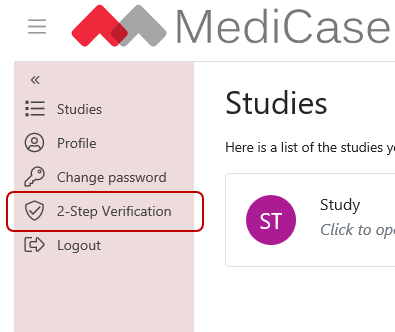
Configure 2-step verification by clicking ”2-Step Verification” in the menu
Click ”Enable” on the next page, and then verify your password. On the password displayed, you may configure the method, or methods, you wish to use as your second step at login. You may specify more than one method for verification and may then choose which method you want to use at login. We recommend that you always configure the SMS method, even if you want to normally want to use a different method, because SMS is a good backup method.
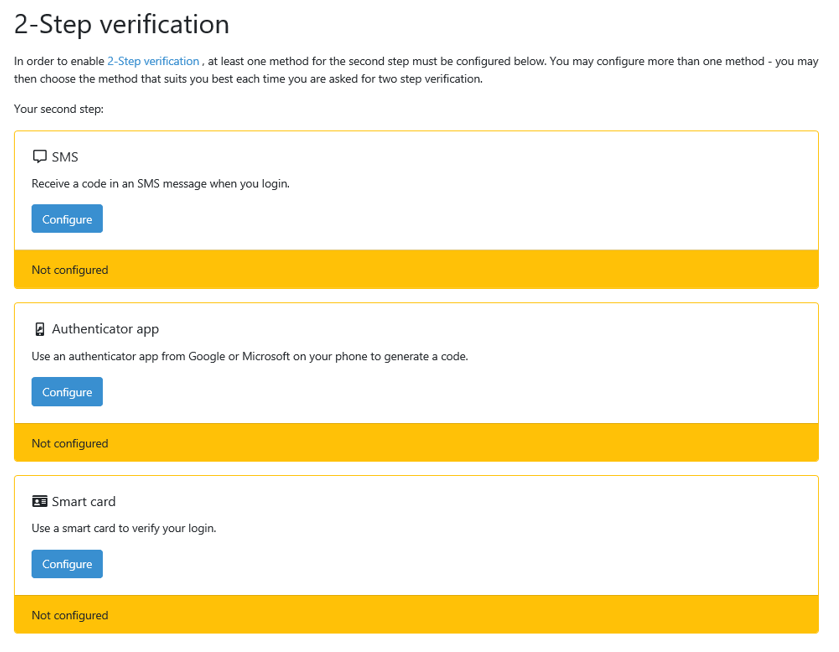
The 2-step verification configuration page
SMS
With the SMS method you receive a verification code in an SMS message sent to your phone at login. You enter the code on the MediCase eCRF login page when you have logged in with username and password.
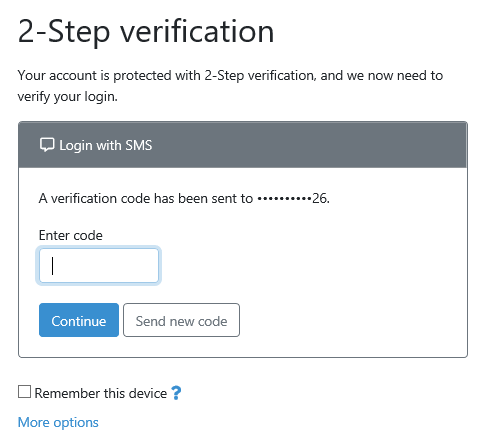
With the SMS method, you get a code sent as an SMS message at login. Enter the code on the login page to complete login
Authenticator app
You can install an authenticator app on your phone or tablet, which will generate a code you use to verify your login. MediCase currently supports the apps Google Authenticator and Microsoft Authenticator. The app will be uniquely linked to your account and can only be used to login your own user.
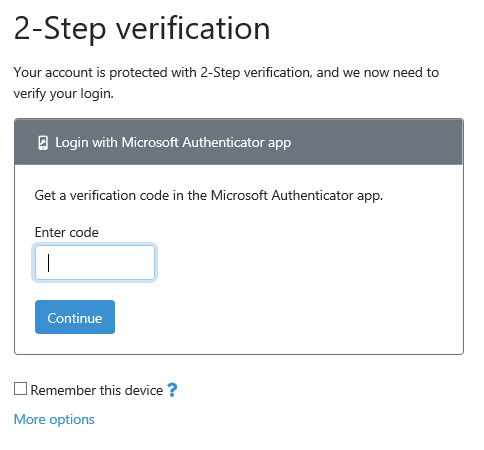
With the Authenticator app method you read a code in an app on your phone at login. Enter the code on the login page to complete login
Smart card
You may use a so called “smart card”, a plastic card with a chip used for login, to verify your MediCase login. For the cards to work with MediCase, the cards must be issued by an organization trusted by MediCase’s security system. Currently SITHS cards are supported, being the dominant card issuer in Swedish health care. If you have the need to support other smart cards, please contact us at MediCase.
The computer you are using must have a card reader. We recommend that you also configure the SMS method to login on devices without a card reader.
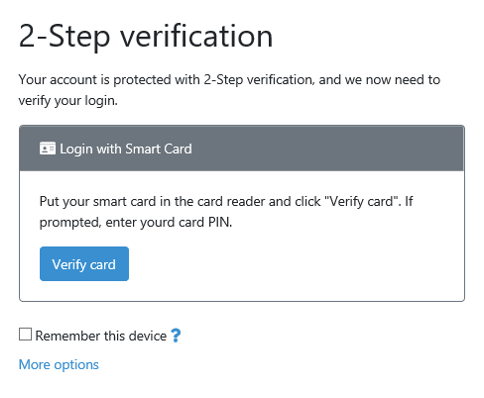
If you have a SITHS smart card, enter it in the computer’s card reader at login and enter the PIN card for your card